Start
Getting started
From sign-in to a live website takes a few minutes. You don't need to know how to code, and you don't need anything installed. pepita runs in your browser.
Sign in
Go to app.pepita.dev and choose one of three ways in:
Your account is created the first time you sign in. There is no separate sign-up form and no card to enter.
Create a site
- On Your sites, click New site.
- Type a Site name. Letters, numbers, spaces and dashes all work.
- Click Create site. The editor opens on your new site.
Advanced settings holds two switches you can also change later: embedding (off) and AI visibility (on).
Your site's address
pepita tidies the name you typed and adds a short random ending, so Simmer & Wok
becomes something like simmer-wok-e824.pepita.page. That address is yours, works
over HTTPS from the first second, and is free. When you are ready, point your own domain at
the site with custom domains.
Your first changes
A new site starts with one placeholder page. From here you have three ways to work, and you can mix them freely:
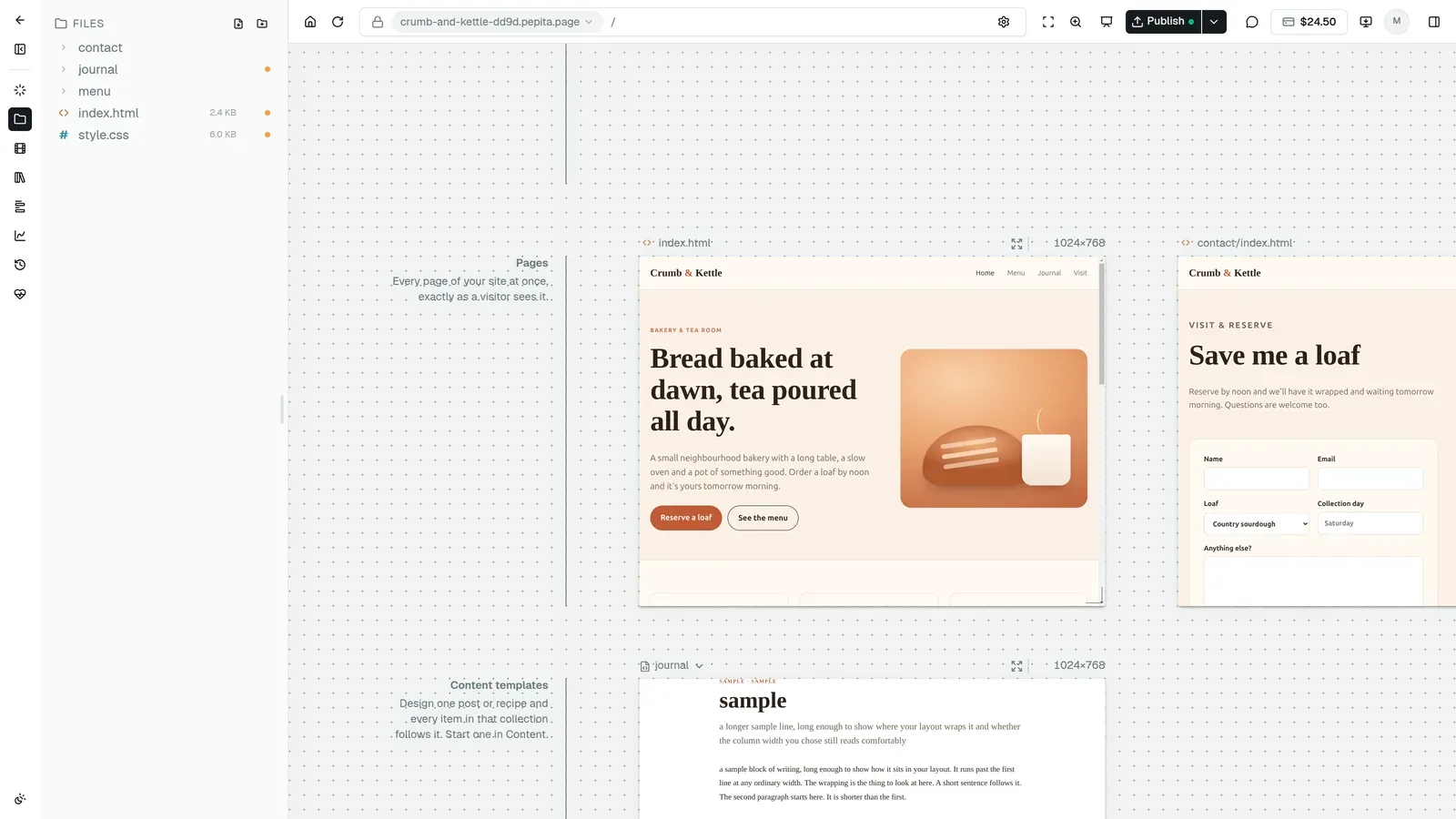
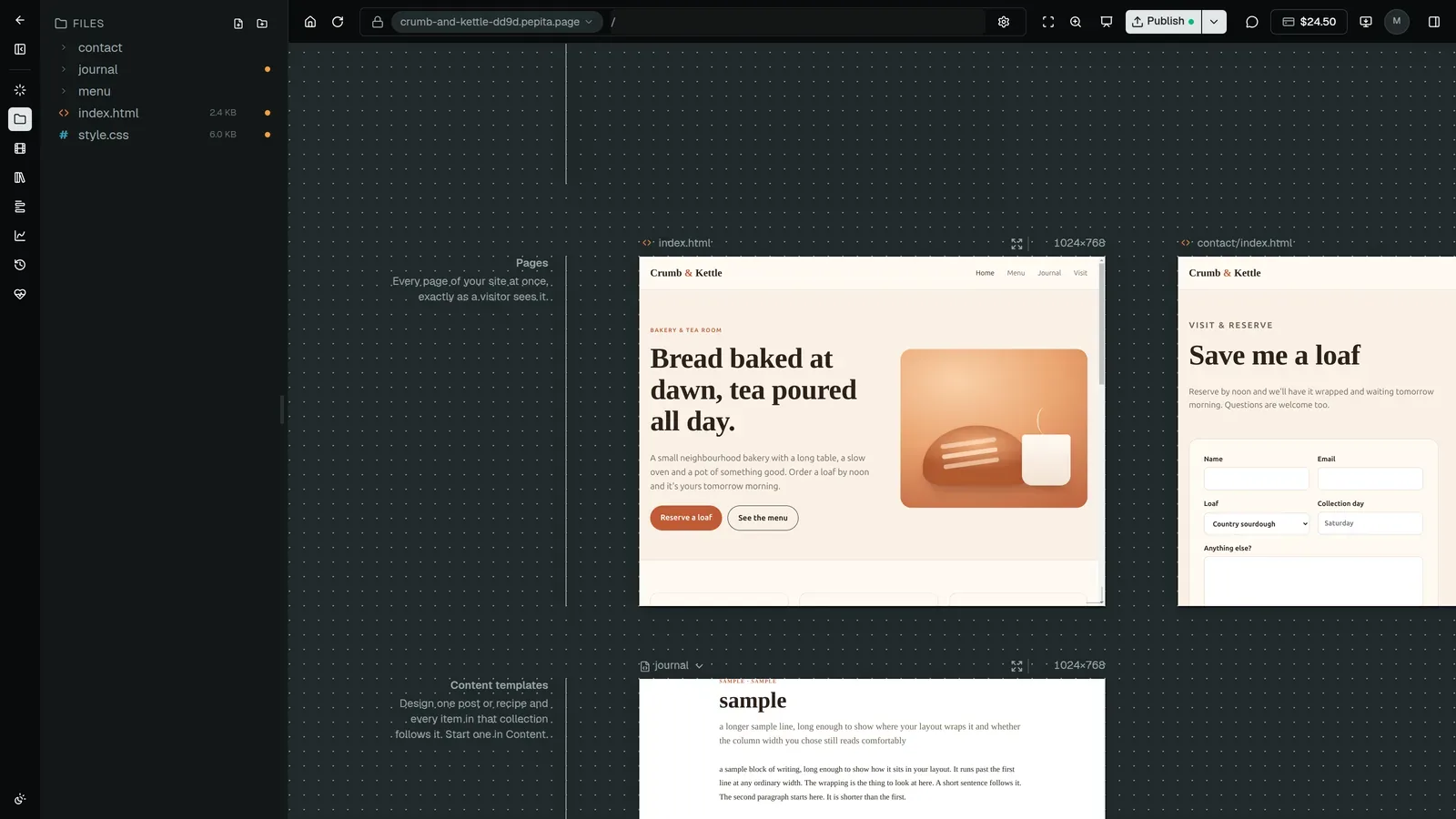
- Ask the AI. Open AI in the left rail and describe the site you want. See AI assistant.
- Use your own agent. Connect Claude, Codex or Gemini and build from there. See your own agent.
- Edit directly. Open Files and change the HTML and CSS yourself. See code editor.
Go live
Click Publish in the top bar. Your changes are on your live address within seconds. Want someone's opinion first? Send them a preview link instead. If a publish doesn't work out, version history brings back any earlier one.