Publish
Version history
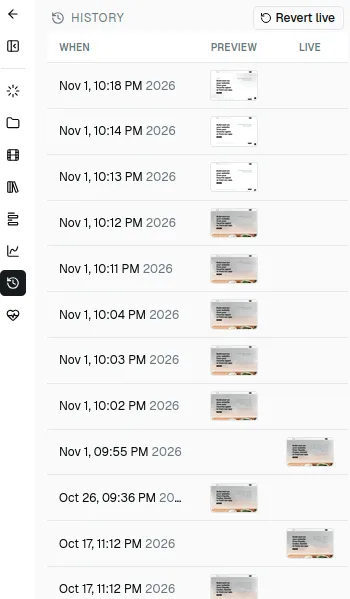
Try anything. Every publish and preview link is saved, with a picture of how the site looked, and any of them can be brought back.
The timeline
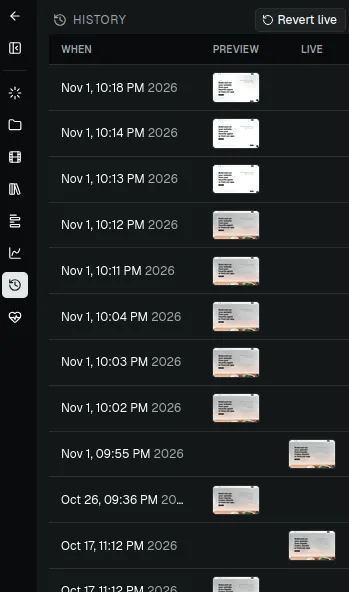
Open History in the editor's left rail. Every publish and every preview link is listed with its date and a thumbnail, newest first.
Restoring a version
Pick a version and choose where it should go:
Restore editorPuts that version back into your working copy, so you can carry on from it. Your live site doesn't change until you publish.
Restore livePuts that version back on your live site straight away, the quick way out of a bad publish. Tick Also restore the editor to bring the working copy back too.
A restore replaces your unpublished work. It can't be undone,
and anything you changed since your last publish or preview is lost. If you are unsure, make a
preview link first: it saves the current state to history.
What a restore covers
A restore brings back your site's files: pages, styles, scripts and images. It doesn't touch collections (their layouts and items), form submissions or videos, which have their own lives outside the files.